3.1 Create a Profile
Objective
Learn how to create a tenant profile. Tenant profiles define feature quotas and limits for tenants, which can be referenced directly when creating tenants, enabling unified management and batch configuration.
Applicable Roles
System Administrator
Prerequisites
Logged in to the platform with a System Administrator account.
The quota parameters for the profile (e.g., max devices, max users) are confirmed.
If planning to import an existing reference template, the corresponding JSON file is ready.
Steps
Step 1: Navigate to Tenant Profiles Page
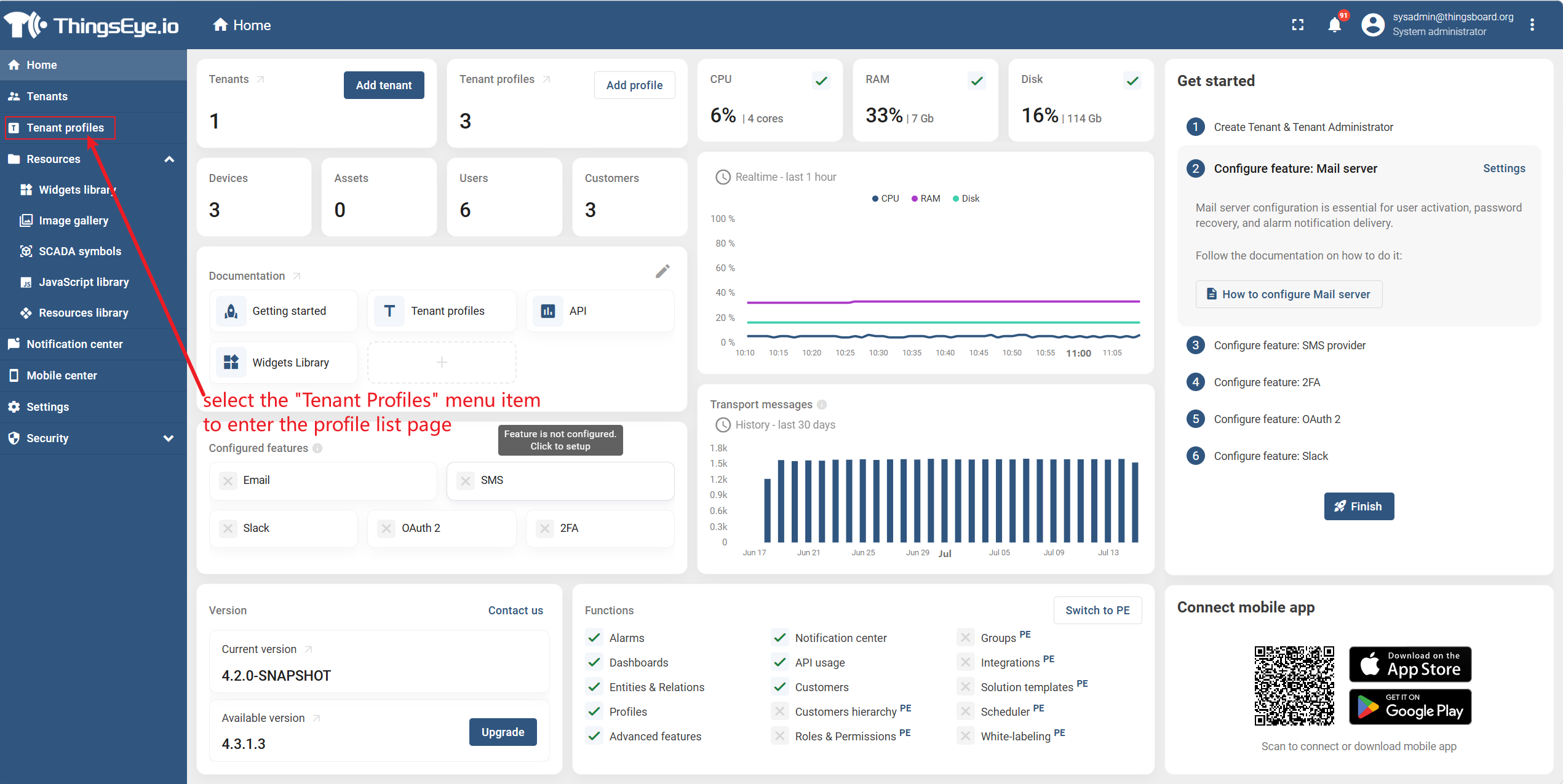
From the left sidebar, select the "Tenant Profiles" menu item to enter the profile list page.
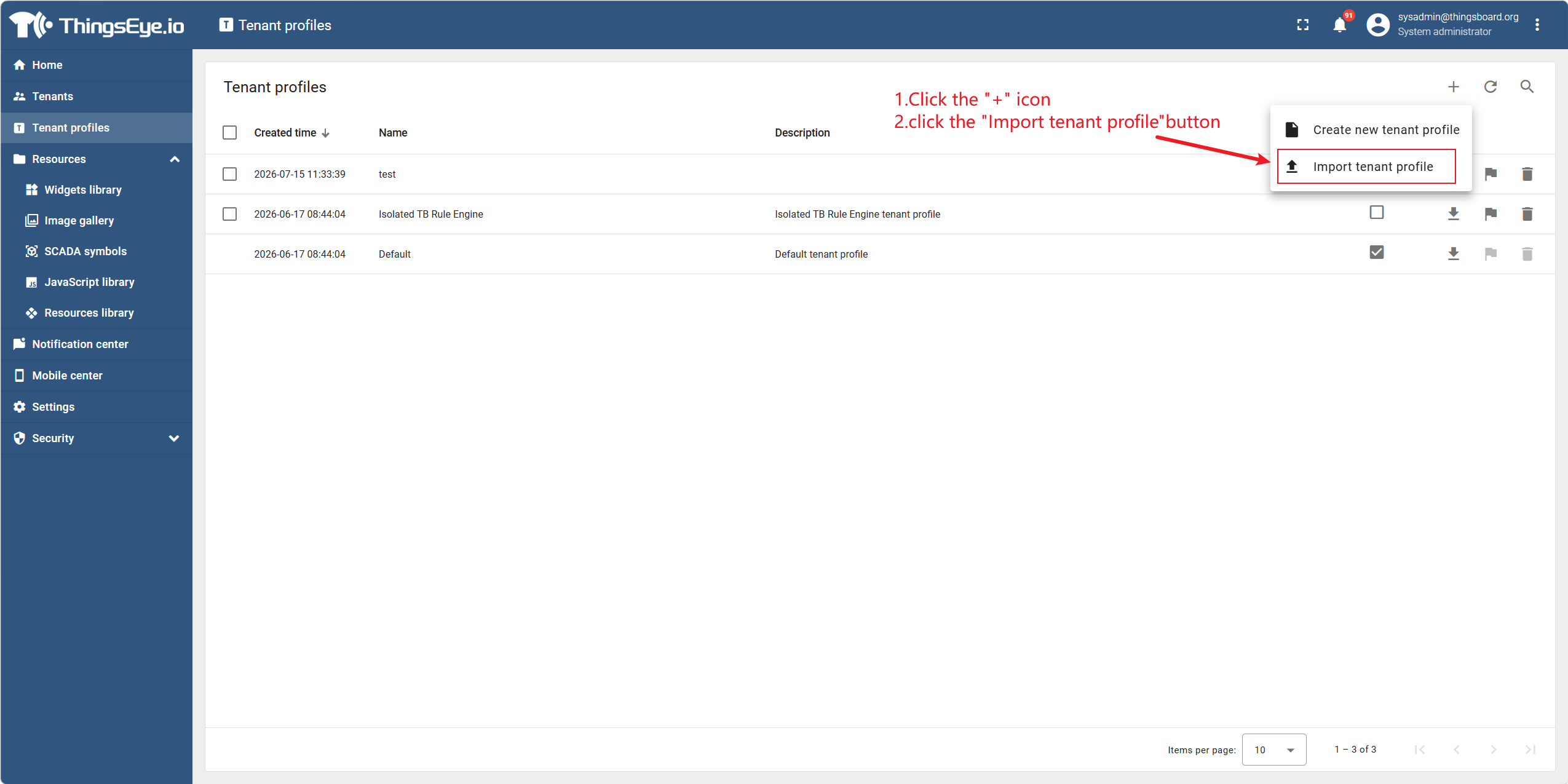
Step 2: Open the Create Profile Dialog
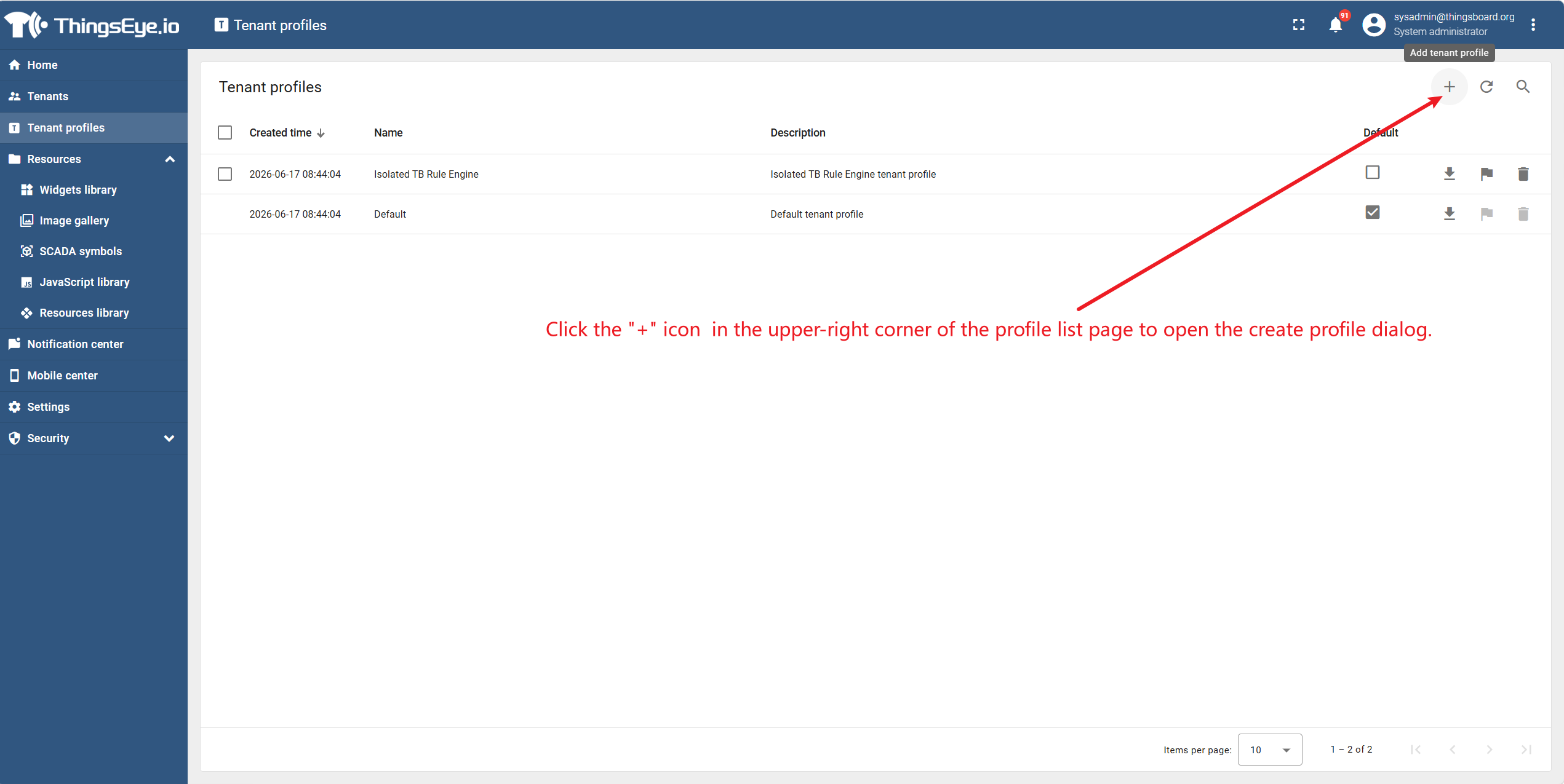
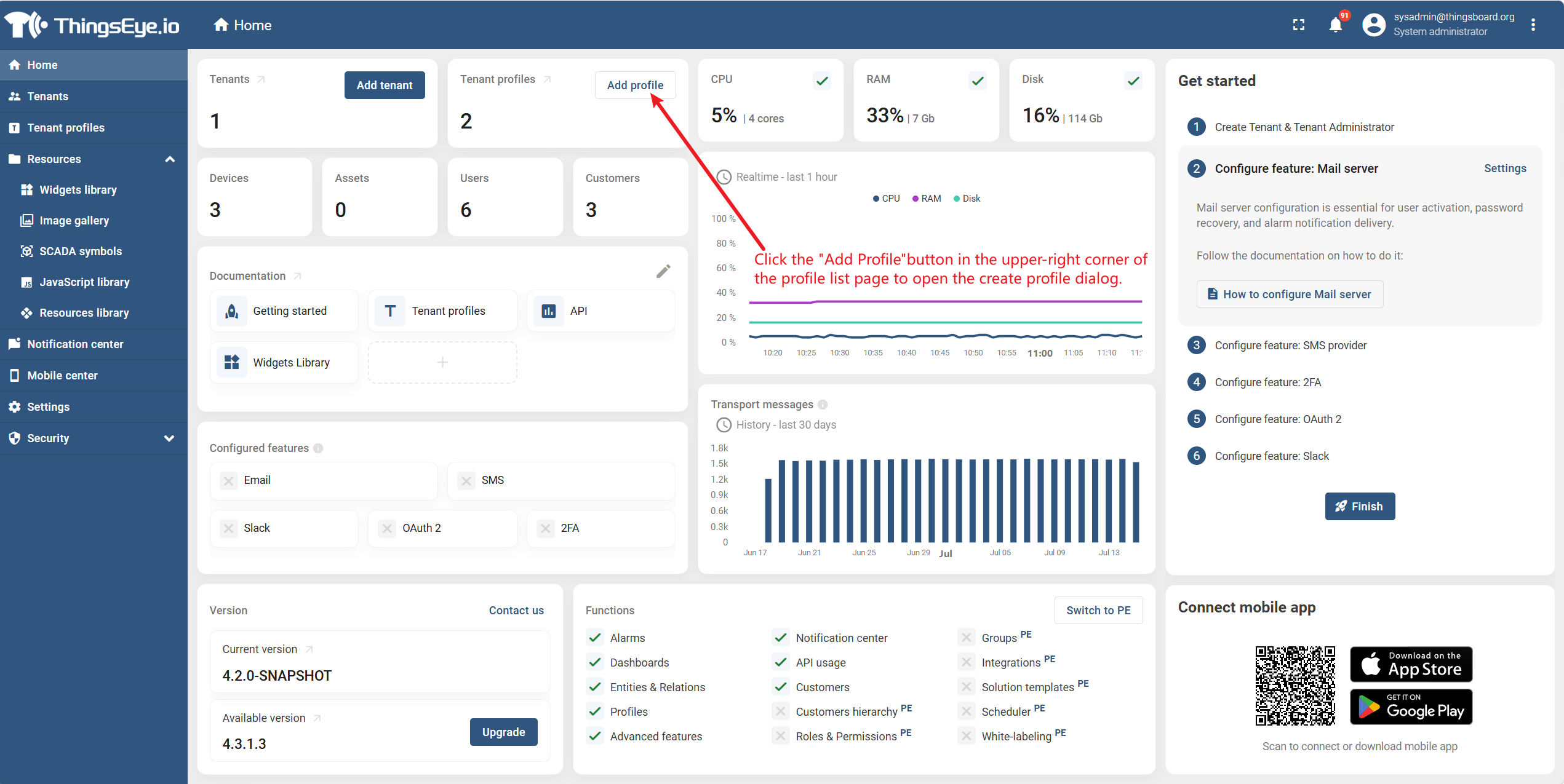
Click the "+" icon or the "Add Profile" button in the upper-right corner of the profile list page to open the create profile dialog.
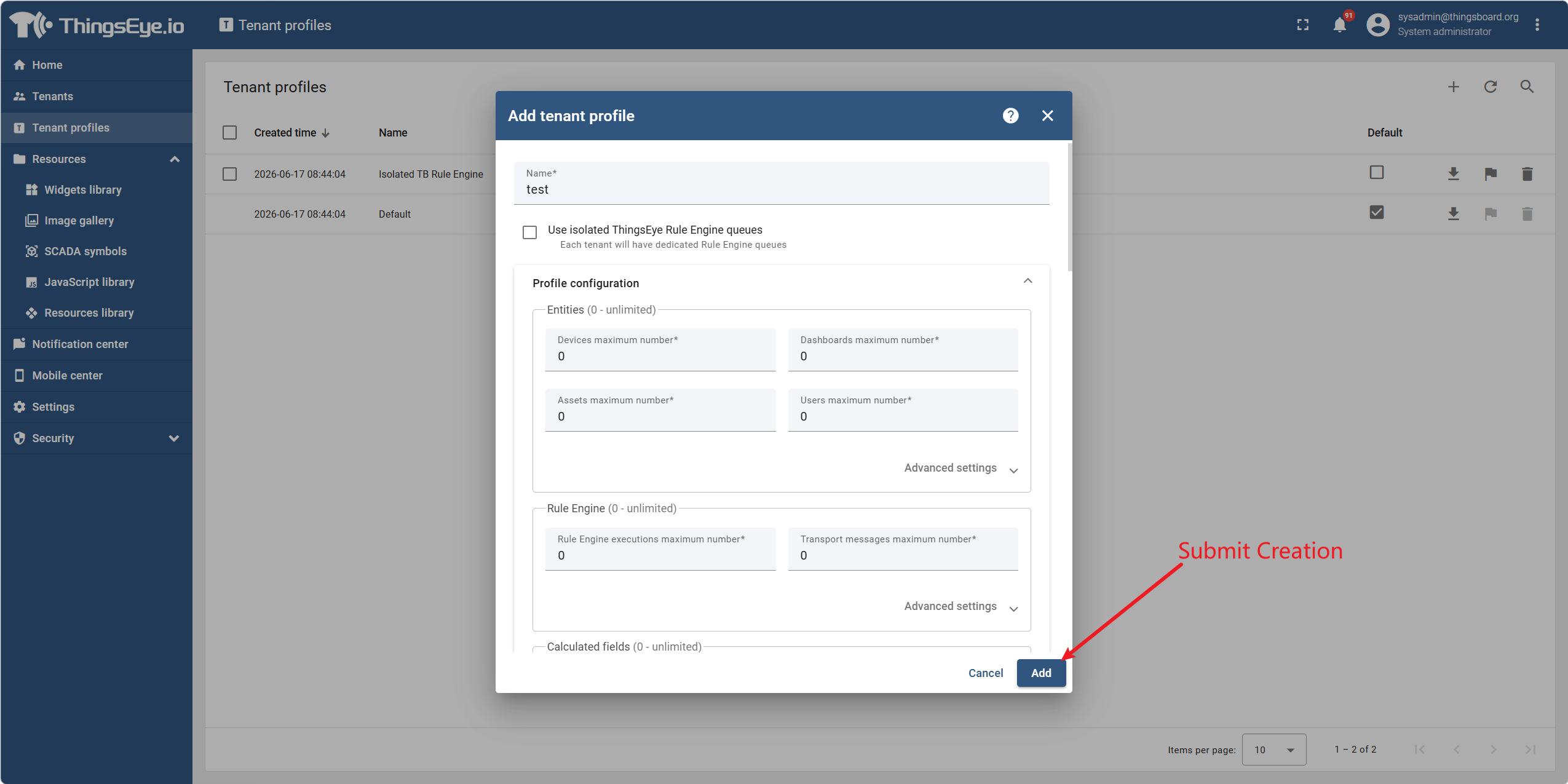
Step 3: Fill in Profile Information and Configure Feature Quotas
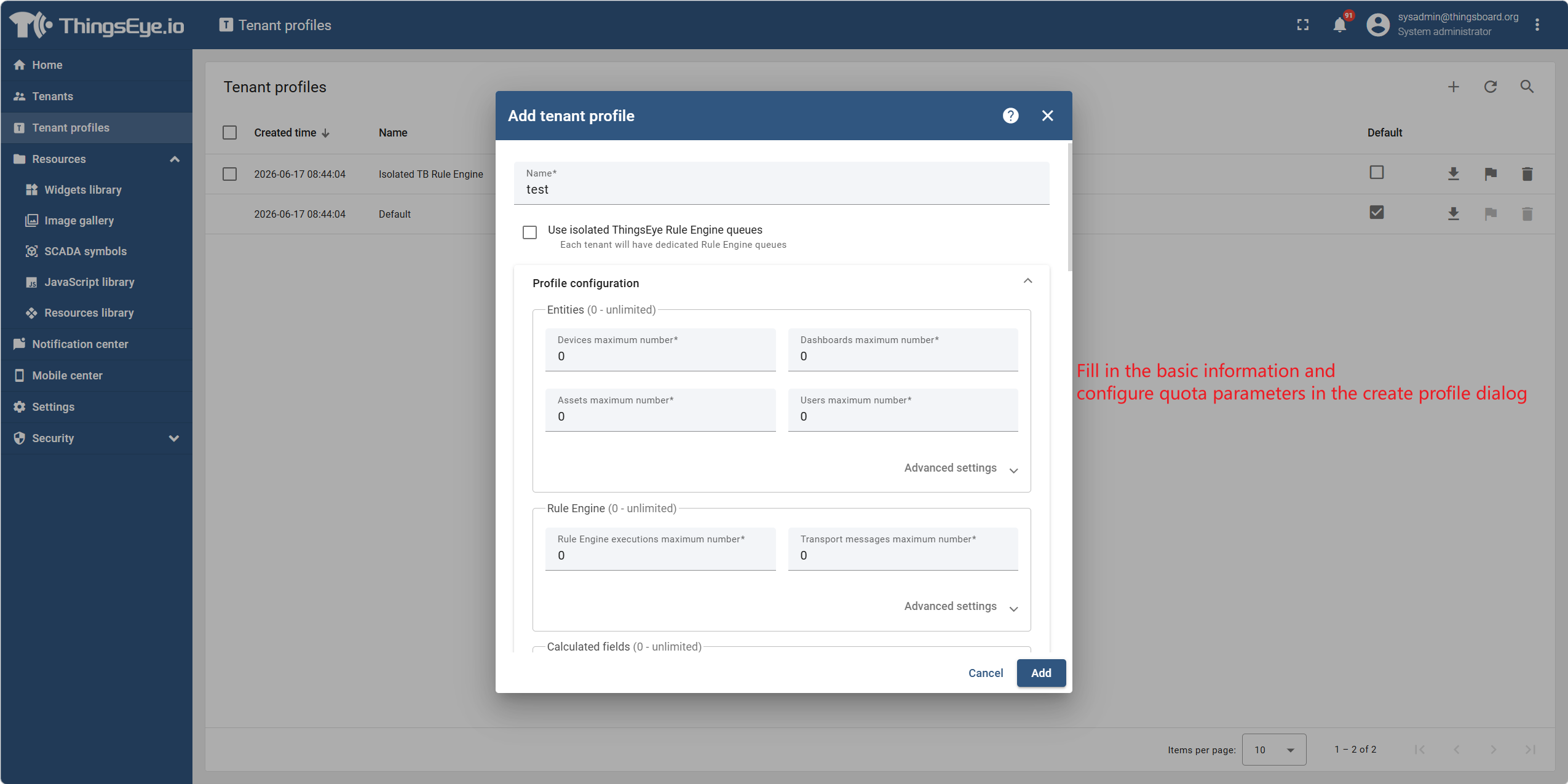
Fill in the basic information and configure quota parameters in the create profile dialog.
Step 4: Submit Creation
After confirming all configurations are correct, click the "Add" button at the bottom of the dialog to submit.
Upon successful creation, the new profile will appear in the profile list and can be referenced when creating tenants.
Import Profile Configuration (Optional)
If you wish to quickly import a complete configuration using a JSON file, click the "Import tenant profile" button in the dialog and select the prepared JSON profile file. All fields will be automatically populated after import.
Relationship Between Profiles and Tenants
| Relationship Type | Description |
|---|---|
| Reference at Creation | A tenant must reference an existing profile upon creation. The profile's quotas take effect immediately for the tenant. |
| Changeable Later | The profile used by a tenant can be changed when editing the tenant (see Section 2.2). see Section 2.2. |
| Shared by Multiple Tenants | The same profile can be used by multiple tenants simultaneously, with independent quotas that do not affect each other. |
| Deletion Restriction | If a profile is currently being used by at least one tenant, it cannot be deleted (see Section 3.3). see Section 3.3. |